
How to track reseller refunds and restocks
FatFat Studio · Updated 2 November 2026 · Reseller Tracker v0.2.2
If a buyer keeps a shirt after a partial refund, the shirt is still sold. Record the refund against that sale. Only record a saleable return after you receive the item and check that it can be sold again.
Keep the item’s original SKU.
Keep the original SKU attached to the item and preserve its sale history. A refunded payment does not make the original sale disappear. If the same physical item returns, avoid creating a second purchased item that duplicates its cost.
| Situation | Money record | Physical stock check |
|---|---|---|
| Item has sold | Record sale receipts and actual direct selling charges. | The item is no longer available for a new sale. |
| Buyer receives a refund | Record the refund against its sale history. | Do not assume the item has returned. |
| Item is received back | Keep any refund, fee credit or additional cost in its appropriate record. | Inspect identity, condition and completeness before recording a saleable return. |
| Item is ready to sell again | Preserve the earlier sale and refund history. | Confirm the workbook shows the item as available before relisting. |
Try a sale and refund in a practice copy.
- Use a separate practice copy and a fictional single item. Give the item a unique SKU and use the same SKU for its events.
- Record its purchase information and a fictional sale using the supplied guide. Review the stock state and recorded contribution.
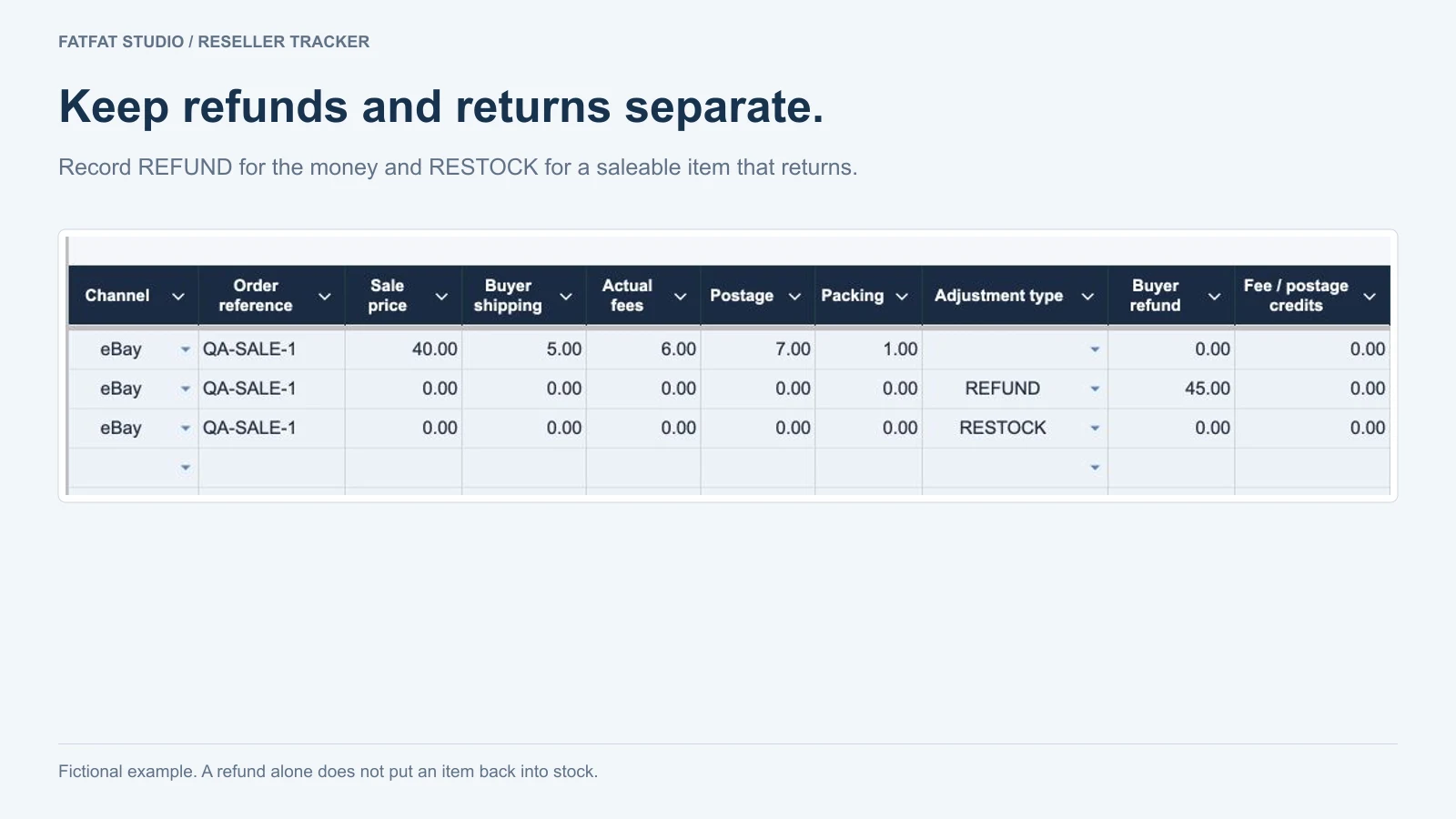
- Record a buyer refund. Check the money results and confirm that a refund alone has not created saleable stock.
- Only after receiving and inspecting the item, record the saleable return using the supplied workbook instructions. Review the available stock before recording another sale.
When an item is damaged, incomplete or not yet received, keep it out of saleable stock. The correct treatment depends on its actual condition and your records; do not force a saleable-return event to make the count look right.
Check which costs remain after the refund.
A refunded sale may still have postage, packing or other charges. A platform may credit some fees and retain others. Use the actual refund and credits from your transaction records. Do not assume all earlier charges were reversed.
Common refund recording questions
How do I record a partial refund if the buyer keeps the item?
Keep the original sale. Use the same SKU, channel and original order reference. Choose REFUND in Events K and enter the actual refund in L. Keep F and G at 0. Confirm the additional fees, postage and packing in H:J, entering 0 for a known zero cost. The item stays sold while the buyer keeps it.
Do I enter the original shipping cost again on a refund?
Keep the original shipping cost with the sale. Enter only new return fees, postage and packing in the refund row’s H:J cells. All three need a number, including 0 when no new charge occurred; a blank means unconfirmed. Check the platform’s actual credits and record them using the workbook instructions.
Do I create a new SKU when a returned item sells again?
For the same physical item, keep its SKU and earlier sale and refund history. Receive and inspect it before recording RESTOCK against the original SKU, channel and order. Keep the RESTOCK money fields F:J and L:M at 0; enter any actual new charges in their appropriate money record. Record a later sale with its own order reference. Keep the original purchase cost rather than entering the returned item as a second purchase.
A January refund still needs the earlier sale
Keep the item’s Inventory row and its earlier sale events when a return falls in a new year. Continue the event sequence and use the original SKU, channel and order reference for the refund and restock. A new Blank file does not carry those records forward.
Overview S2 selects the report date. Annual totals use that date’s calendar year, while stock and the item’s cumulative contribution still depend on earlier records. Keep a year-end archive as a separate copy; preserve the full working history for later returns. The 300-item and 1,000-event capacity limits still include history.
Check a fictional return across two years
Start with the new-lamp practice example in an otherwise empty Practice copy. It contains one 2026 sale for $32, an item cost of $16 and direct selling charges of $5. There are no earlier refunds or credits for this fictional order.
In Practice only, set Overview S2 to 31 January 2027. Keep the original item and sale unchanged. Add these two rows to Events in sequence:
| Record | Identity and date | Type and amounts |
|---|---|---|
| Events row 8 | A8: 2; B8: 5 January 2027; C8: NL-0101; D8: Other; E8: NL-ORDER-1. | K8: REFUND; L8: 32.00. Enter 0 in F8:J8 and M8. Use a real date value in B8. |
| Events row 9 | A9: 3; B9: 6 January 2027; C9: NL-0101; D9: Other; E9: NL-ORDER-1. | K9: RESTOCK. Enter 0 in F9:J9 and L9:M9. This assumes the lamp is physically back and saleable. |
Use N8 and N9 for a practice note if useful. These rows assume no new return fees, postage or packing. For real orders, confirm the actual charges before recording them.
| Overview S2 report date | Stock / recorded stock cost | Displayed calendar-year contribution |
|---|---|---|
| 28 October 2026 | 0 items / $0 | $11 for 2026. The January events are outside this report date. |
| 5 January 2027 | 0 items / $0 | −$32 for 2027. The refund is included; the later restock is not yet included. |
| 31 January 2027 | 1 item / $16 | −$16 for 2027, after the item cost is returned to stock. |
At the final date, the item’s cumulative contribution is −$5: the original direct selling charges remain. Its 2026 contribution of $11 and its 2027 contribution of −$16 cover different years. Check Events Q7:Q9 for OK and Rows needing correction for 0 before relying on the results.
All amounts and transactions are fictional. Contribution excludes overhead, owner labour and income taxes. Practise separately from real stock.
Before you close a return case
Use the actual order and refund records to check the money, then inspect the item to check the stock. A buyer's return request alone does not confirm either outcome.
- Confirm the amount refunded. Match it to the original order reference and SKU. A partial refund should not be entered as a second full refund.
- Check fee credits and new costs. Use the platform's confirmed transaction record. A credit that is still pending is not a confirmed credit. Keep the original postage separate from any new return postage.
- Check what came back. Match the SKU and description. Inspect condition and any parts or accessories before deciding whether it can be sold again.
- Record its location. If it is ready for sale, follow the saleable-return instructions and put it in a location you can find. If it needs work, keep it out of saleable stock.
Keep buyer conversations in the marketplace's order thread. For your own records, retain only what you need to trace the transaction. Use fictional or redacted details when asking for template support.
What to check if the result looks wrong.
- The SKU must refer to the intended item; check for duplicate or mistyped IDs.
- Review the event type, order reference, sequence, date and entered amounts against the supplied instructions.
- Check that a refund and a physical return were not entered twice.
- Review both the item state and the money summary. A matching refund amount alone does not prove the stock count is correct.
This workflow describes individual items you own. Reseller Tracker v0.2.2 does not support bundles, multi-item orders, multi-unit stock or consignment. It records your inputs; it does not perform marketplace refunds or connect to marketplace accounts.
Keep the sale and return in one workbook
For owned stock, manual entry, one item per SKU and order, in desktop Google Sheets. Includes space for 300 cumulative item records and 1,000 events. One currency per workbook.
Preview the tracker — US$15 once →Applicable taxes and total shown at checkout. Check the product page for the download, support, license and practical limits.